Bluetooth Keyboard or Mouse Stops Responding: Preserve a Way Back In
Before removing a stalled input device, make sure you can still control the computer. Then distinguish power, host selection, pairing and application behavior with a small test.
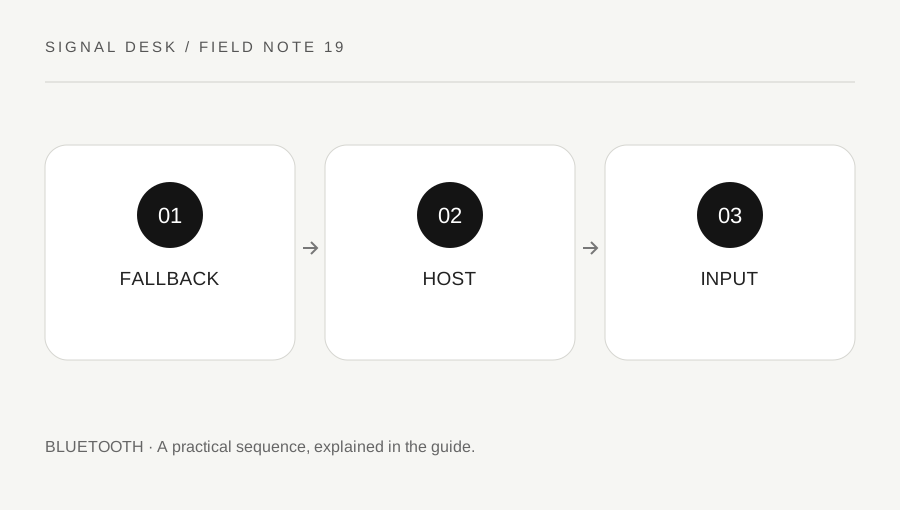
Original explanatory diagram. Numerical examples in this guide illustrate the reasoning; they are not a claim of hands-on testing.
Keep an alternative control route
If the computer has a built-in keyboard or trackpad, confirm that it works before changing the external device pairing. Otherwise, use an available supported input method according to the computer’s instructions. Do not remove the only working device while assuming that the rest of the setup can be completed without it. Accessibility needs may require a carefully planned alternative.
Save work if you can and move the test away from a password field or a sensitive document. For a keyboard, use a non-sensitive text field to check ordinary keys. For a mouse, note whether the pointer fails everywhere or only one application stops responding. If the built-in input also fails in the same application, the problem may not be confined to Bluetooth.
Check power and selected host
Use the accessory’s own controls to check power and battery or charge status. Follow the model’s battery replacement or charging instructions, and stop for visible damage or unusual heat. An illuminated indicator does not establish that the device has selected the intended computer. Many accessories have numbered host buttons or a switch between receiver and Bluetooth modes.
Read the exact model procedure before holding buttons for an extended time. A long press may start pairing or clear a saved slot, while a short press may select another host. Keep the original working arrangement documented. If another nearby device begins receiving the keyboard input, stop typing private information and correct the host selection through the supported controls.
Work through a host-slot example
Imagine a keyboard used with both a laptop and tablet. It appears powered, but nothing is typed into the laptop. The selected host light indicates the tablet slot, and text appears on the tablet when tested in a harmless field. Selecting the documented laptop slot restores input. That comparison identifies a host-selection issue without requiring a driver reinstall.
In a different pattern, the intended slot is selected and the operating system lists the keyboard as connected, but no application receives input. Use the built-in fallback to check system diagnostics and the accessory’s normal reconnect procedure. If re-pairing becomes necessary, follow official instructions for the specific model and host, verifying any pairing code carefully. Keep the fallback available until the real typing or pointer test succeeds.
Check recurrence and seek the right support
After recovery, test the conditions that preceded the failure: waking the computer, switching hosts or docking, for example. Record whether the issue returns and whether the fallback still works. Use operating-system and manufacturer updates from official sources when relevant. On managed systems, ask the administrator to assess restricted Bluetooth or power-policy changes.
Send support the accessory model, selected host mode, system version and whether input fails everywhere or in one application. Do not include passwords typed during a failed test or screenshots of private documents. If the accessory cannot hold power or shows physical damage, use its service route rather than repeating pairings. A useful resolution restores a reliable input path and leaves you with a safe recovery method if the same symptoms recur.
Check function keys without changing pairing
A keyboard can type normally while a media key or special shortcut fails. Record that narrower symptom and consult the model’s supported key modes, operating-system compatibility and application behavior. A function-lock or host-mode selection may affect those keys without interrupting the basic connection. Do not describe partial shortcut behavior as complete Bluetooth failure. Test only harmless keys first and keep accessibility settings in mind. If ordinary typing works, preserve that working state while you investigate the particular feature through the official documentation.
A practical checklist
Tick items for your own use. This checklist is saved only in this browser.
Questions that come up
Why avoid testing in a password box?
Input could go to another remembered host or reveal private information during troubleshooting. Use a harmless field instead.
Should I remove the device first?
Only after you have another supported way to control the computer and a clear pairing procedure available.
Can one unresponsive app look like a keyboard fault?
Yes. Compare a harmless field in another context and the built-in input method before changing Bluetooth settings.
References & scope
Background references checked on 18 October 2026. The examples and practice exercises are original editorial explanations, not copied procedures or professional advice.