Bluetooth Headphones Connected but No Sound: Trace the Audio Route
Connected headphones are not necessarily the selected sound output. Trace the device, system and application controls in order, then check whether the problem changes during a call.
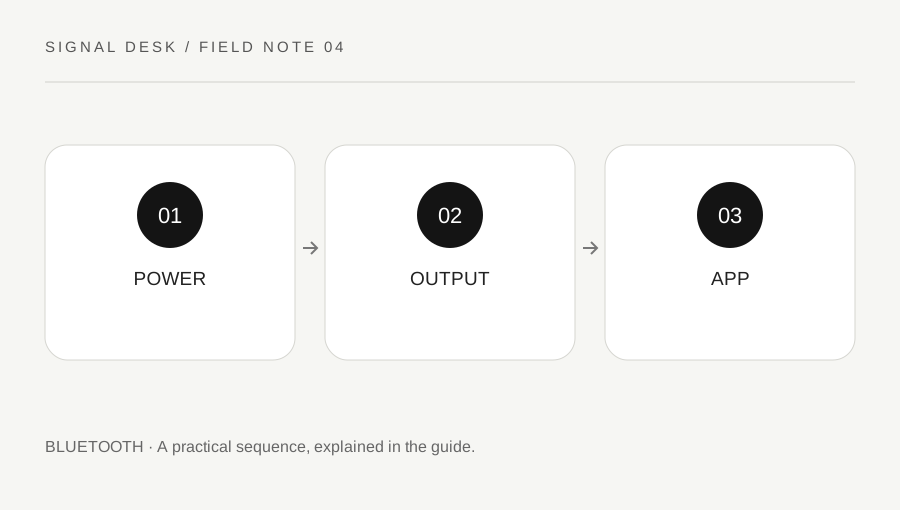
Original explanatory diagram. Numerical examples in this guide illustrate the reasoning; they are not a claim of hands-on testing.
Confirm the accessory and its current connection
Check the headphones' charge and power state using their own indicators or companion instructions. A low-battery alert, pairing mode and a successful connection can sound different between models. Keep the headphones within normal working range for the first test and remove obvious obstacles, but do not treat proximity as proof of a working audio route.
Look for another phone, tablet or computer that may have connected automatically. Some accessories support more than one connection, while others switch between remembered devices. Read the model instructions before forcing a reset or changing multipoint settings. Make a note of which device is supposed to play sound, and pause audio on the others so the comparison is understandable.
Follow the output from system to application
Use the operating system's sound controls to select the intended headphones as the output device. Check the system volume, the accessory volume and the application's own mute or volume setting. Start with a comfortable low level before raising it. A device listed in Bluetooth settings can still be different from the active sound output shown in the audio controls.
Play a familiar, non-sensitive local sound or short clip, then test the application where the problem began. Some meeting and media applications keep separate output selections. If a system sound works but one application is silent, inspect that application's audio destination and permissions rather than removing the Bluetooth device immediately. Write down which of these comparisons succeeded.
Distinguish playback from a call problem
A call may use a microphone and communication audio path that behaves differently from ordinary media playback. Check the meeting application's selected speaker and microphone separately. Use its test function if available and follow the accessory or operating-system instructions for supported modes. Do not assume that sound quality during a call should match music playback under every configuration.
If others cannot hear you, that is a microphone problem even when your headphones play audio correctly. Inspect mute controls, selected input and relevant application permissions. If you cannot hear them but a test sound works, check meeting controls and the remote participant's audio too. This avoids changing a working playback setup to solve a problem that exists at another part of the call.
Work through a device-switch example
Suppose headphones connect to a laptop, but a video is silent. The operating system still lists the laptop speakers as output. Select the headphones and test at a low volume. If sound now plays, the useful finding is an output-selection issue; pairing was already working. Record that distinction so the next recurrence has a short first check.
In another example, music works until a meeting starts, then the user cannot hear the meeting. The meeting's speaker selection points to a monitor. Change that selection through the application's controls and test again. If every application remains silent despite the correct output, try an ordinary disconnect and reconnect, then follow current official Bluetooth diagnostics. Save re-pairing or driver changes for an evidence-based later step.
Reconnect safely and collect useful details
If re-pairing is necessary, make sure you have another way to control the computer before removing a Bluetooth keyboard or pointing device. For headphones, follow their specific pairing instructions and remove only the intended entry. Avoid clearing every remembered accessory. Restart an application or device when official instructions call for it, after saving work and leaving active calls appropriately.
Use operating-system updates and manufacturer driver sources, especially if the problem began after an update. On managed equipment, let the administrator handle restricted settings. If the fault persists, record the headset model, system version, selected outputs and whether local playback and calls fail in the same way. Stop using an accessory that is unusually hot, damaged or has a swollen battery and consult its manufacturer.
A practical checklist
Tick items for your own use. This checklist is saved only in this browser.
Questions that come up
Does connected mean audio is routed there?
No. Bluetooth status and sound-output selection are separate observations. Check both before changing pairing settings.
Should I turn the volume all the way up?
Begin at a comfortable low volume and increase gradually while testing. Check mute and output selection before raising the level substantially.
Do I need a new driver for every sound problem?
No. First isolate accessory power, output selection and application behavior. Use official updates when the evidence and current support guidance justify them.
References & scope
Background references checked on 18 October 2026. The examples and practice exercises are original editorial explanations, not copied procedures or professional advice.