Bluetooth Device Not Discoverable: Pairing Mode Is a Separate Step
Powering an accessory on is not always the same as making it discoverable. Confirm the model’s pairing procedure and the intended host before removing saved devices.
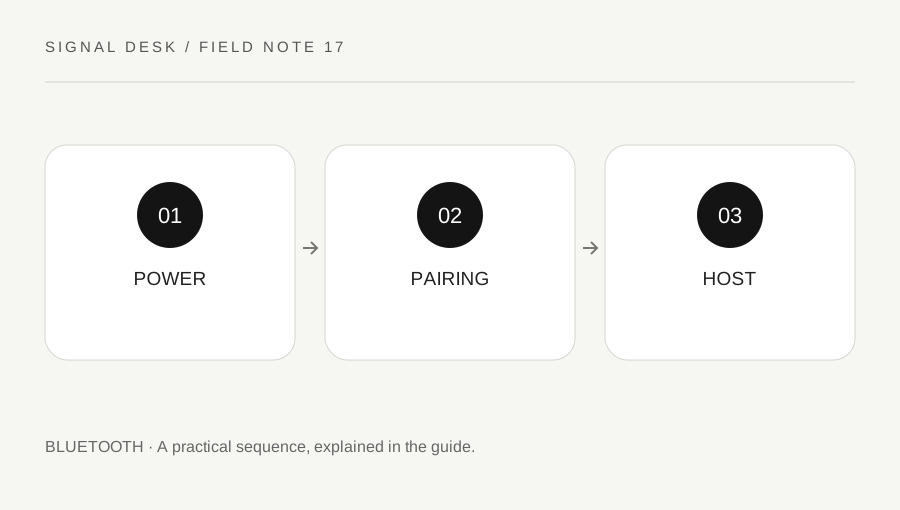
Original explanatory diagram. Numerical examples in this guide illustrate the reasoning; they are not a claim of hands-on testing.
Identify the accessory and intended host
Read the model name and find its official pairing instructions. Accessories use different buttons, timing and indicators, so avoid applying a universal long-press routine. Some button combinations clear stored settings rather than start discovery. Make sure the accessory has sufficient charge and is intended to connect through Bluetooth rather than a separate proprietary receiver or another wireless method.
Choose the computer, phone or tablet you want to pair with and open its normal Bluetooth controls. Check the radio state and any airplane-mode restriction. Keep the accessory nearby in a safe position for the first attempt. If the host is managed or has Bluetooth intentionally disabled, ask the administrator rather than trying to bypass the control.
Check whether it is already connected elsewhere
An accessory may reconnect to a remembered device instead of becoming available to a new one. Look at other nearby devices you own and their current connection status. Pause activity and disconnect through normal controls if the official pairing procedure requires it. Do not erase every remembered connection when a single temporary disconnect would answer the question.
If the accessory supports several devices or a host-switch button, follow the exact model’s instructions for selecting the correct slot. A keyboard showing a light does not tell you which host it is trying to reach. Keep a record of the selected slot and indicator so a successful pairing can be repeated later. Discovery and automatic reconnection are related but distinct behaviors.
Work through an accessory-switch example
Imagine headphones that connect automatically to a phone while a laptop search shows nothing. The user follows the headphones' documented procedure for pairing with another device, then repeats the laptop’s normal search. If the headphones appear, the useful finding is a pairing-state issue; it is not evidence that the laptop’s Bluetooth hardware was defective.
If they still do not appear, compare another supported accessory or host where available and authorized. Keep the same procedure and record what is visible. Do not pair with unidentified neighboring devices just to fill the list. A successful comparison narrows the question for official support, while an unsuccessful one still benefits from knowing whether the host can discover anything at all.
Pair deliberately and protect your control route
Select the expected accessory name and verify any code or confirmation requested by both devices. If an unexpected pairing request appears, reject it and check the source rather than accepting automatically. For keyboards and pointing devices, keep another supported way to control the computer before removing an existing pairing. Losing your only input method can turn a small problem into a difficult recovery.
After pairing, test the actual task: type into a non-sensitive text field, move the pointer or play a low-volume sound. A paired status alone is not the final check. If official diagnostics or updates are needed, use the operating system and manufacturer routes. Send support the exact models, pairing indicator, other-host result and any error, with private device identifiers redacted where unnecessary.
Keep receiver-based accessories in the correct category
Some keyboards and mice include a small USB receiver and also offer Bluetooth, while others use only their receiver. Read the model label and connection instructions before searching indefinitely for an unsupported Bluetooth entry. A missing receiver is a different setup problem from a hidden Bluetooth device. If both modes exist, record which one you selected and avoid changing them during a single comparison. This prevents a working receiver connection from being removed while you attempt to pair a device that is currently waiting for another wireless route.
A practical checklist
Tick items for your own use. This checklist is saved only in this browser.
Questions that come up
Is switching an accessory on enough to pair it?
Not always. Many accessories have a separate discoverable or pairing state described in their model instructions.
Should I accept every pairing prompt?
No. Confirm it belongs to the expected device and reject unidentified or unsolicited requests.
Why keep another keyboard or input route?
Removing the only working input device can leave you unable to complete pairing or restore the earlier setup.
References & scope
Background references checked on 18 October 2026. The examples and practice exercises are original editorial explanations, not copied procedures or professional advice.