USB Printer Not Recognized: Test the Cable Path Before the Driver
A USB connection has several visible checkpoints: printer readiness, cable path, computer detection and the print destination. Keep them separate so a simple connection fault does not become a complete reinstall.
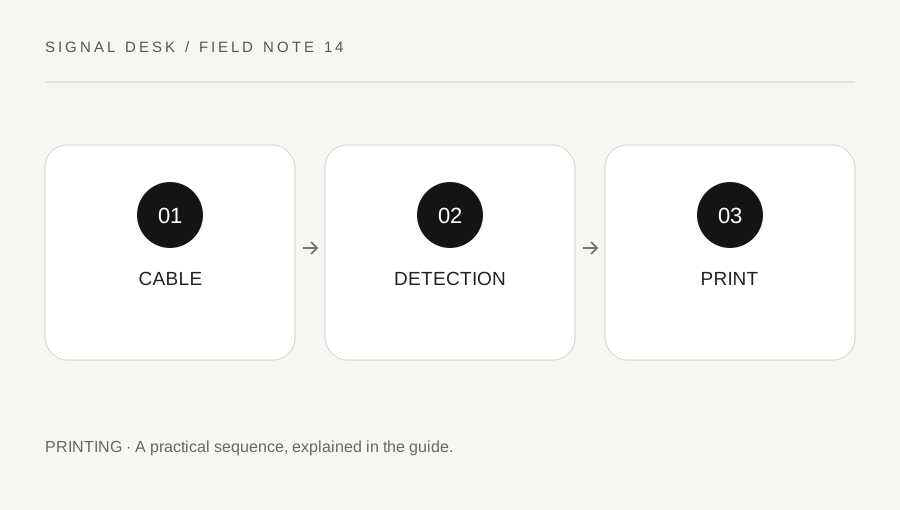
Original explanatory diagram. Numerical examples in this guide illustrate the reasoning; they are not a claim of hands-on testing.
Establish the printer and cable arrangement
Check the printer display and confirm that it is ready according to the exact model instructions. Read any paper, cover or supply error before assuming the computer has failed to detect it. Identify the cable you are using and where both ends connect. A connector that fits is not, by itself, evidence that the whole path supports the intended connection.
Inspect for obvious cable damage without opening plugs or equipment. If a cable is frayed, unusually hot or physically damaged, stop using it and seek an appropriate replacement or service route. Do not force a connector or bend it to make contact. Record whether a hub, dock or adapter sits between the printer and the computer, because it creates a useful comparison point later.
Compare a supported direct path
If the manufacturer supports it and your computer has a suitable port, try a direct connection without the optional hub or dock. Save work and avoid interrupting transfers on other attached devices. Change one part of the path at a time so you know which comparison produced the result. A different cable should be compatible with the printer and computer rather than simply having a similar end.
Open the operating system’s printer or device controls and watch for a detection change. Do not assume a sound notification means that printing is fully configured. Check whether the intended model appears, whether an error is reported and whether the application still points to an older wireless printer entry. Physical detection and the selected print queue are separate stages in the same workflow.
Use an illustrative dock comparison
Imagine a printer connected through a dock that stopped appearing after the laptop was moved. The printer’s own test page prints correctly. A supported direct USB connection causes the printer to appear in system controls and a one-page computer test succeeds. Record that narrow result. It suggests investigating the dock path, its power and supported ports rather than immediately replacing the printer.
If the direct path does not change detection, consult the exact model’s official setup instructions. Some installation workflows specify when to connect the cable. Do not install a generic driver bundle from a search advertisement. If an official package is required, match the model, operating system and computer architecture, then follow its instructions. On managed equipment, ask the administrator before installing or removing software.
Verify the intended route and preserve the record
After detection, select the correct printer entry and send a single non-sensitive page. Inspect the physical output and then test the original application. If a system test works but one program fails, preserve that comparison and inspect its selected destination. Avoid sending repeated large jobs while the connection remains uncertain, because they can print later after the fault clears.
Keep a note of the cable path that worked, including any adapter or dock removed for the comparison. Do not describe the printer as permanently repaired if the issue returns after docking or sleep. Send support the model, system version, direct-path result and exact error. This gives a bounded technical question and prevents repeated driver changes from hiding a connection issue that follows one part of the physical setup.
Label the successful connection for later use
If several similar USB sockets or adapters are involved, write a plain description of the successful supported path rather than an ambiguous note saying that another port worked. Do not put labels where they obstruct ventilation or connectors. Keep the cable route free of tension and walking hazards. If reconnecting after a move causes the issue again, compare that documented path before changing software. A physical reference is especially useful when more than one person uses the desk and a working cable can be moved without anyone noticing.
A practical checklist
Tick items for your own use. This checklist is saved only in this browser.
Questions that come up
Does a USB notification prove the printer is ready?
No. It may indicate detection while the printer setup, selected queue or physical readiness still needs attention.
Should I use any cable with matching ends?
Use a cable suitable for the device and connection, and never force damaged or ill-fitting connectors.
What if direct USB works but a dock does not?
Record that comparison and consult the dock and computer support guidance rather than repeatedly reinstalling the printer.
References & scope
Background references checked on 18 October 2026. The examples and practice exercises are original editorial explanations, not copied procedures or professional advice.