Video Calls Freeze but Browsing Works: Compare the Right Conditions
A brief page load and a continuous call place different demands on a connection and device. Record what freezes and compare a simple call setup before blaming one piece of equipment.
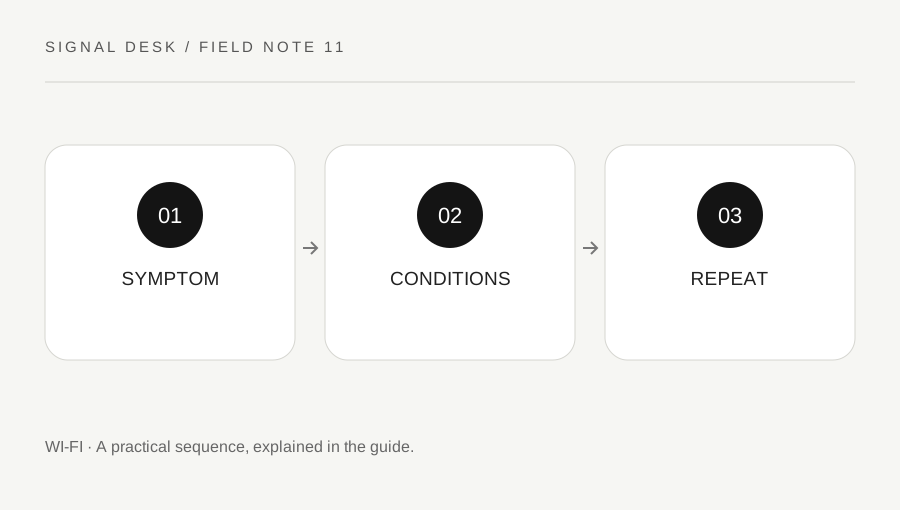
Original explanatory diagram. Numerical examples in this guide illustrate the reasoning; they are not a claim of hands-on testing.
Describe which part of the call fails
Notice whether incoming video freezes, your own video stops for others, audio breaks up, or the meeting application becomes unresponsive. Ask a participant what they observe without interrupting the entire meeting if possible. A frozen local preview, an absent microphone and a disconnected call are different clues even when the experience feels equally frustrating.
Record the application, approximate time, location and whether the device is on battery or docked. Note if the problem coincides with screen sharing, a large download or moving between rooms. Keep private meeting contents out of screenshots. If the application provides its own connection or device-test information, use its current official help to interpret it rather than assuming every displayed number has the same meaning across services.
Simplify the test without disrupting others
When practical, make a short non-sensitive test call with a willing person or the application’s supported test function. Use the same device in a stable location. Pause nonessential large transfers you control, after checking that doing so will not damage work. Do not disable protective software or change shared router settings during a live meeting.
Compare the application’s microphone, speaker and camera selections separately from the network. A Bluetooth headset using the wrong output can produce missing sound while the call connection remains healthy. A device under heavy load may also respond poorly even when ordinary browsing seems acceptable. Treat these as questions to test, not diagnoses established by one symptom. Keep one working baseline so later changes can be judged.
Work through a location comparison
Imagine calls break up at a distant desk but a short test is stable near the main access point. The laptop and application are unchanged, and another device also struggles at the desk. That pattern justifies a careful location and coverage investigation. It does not, by itself, prove which extension product or router setting would solve the problem.
Now imagine calls fail in both locations only when one application is used, while its own test reports a selected microphone that is disconnected. That leads to an application and device-selection check instead. In either case, record the original condition, one changed factor and the result. Comparing a browser page once is useful background, but it is not a complete test of a sustained two-way call.
Use a stable fallback and report useful evidence
For an important call, use an available stable location, approved wired connection or supported audio-only option while troubleshooting continues. Consider data charges and organizational policy before using a hotspot. Avoid unsafe temporary cable runs or sharing a confidential meeting through an unapproved device. A practical fallback should preserve the meeting’s requirements as well as connectivity.
Afterward, send the relevant service, device or network support team the precise symptom and controlled comparisons. Include application and system versions, location dependence and whether audio, video and screen sharing behave differently. Retest the original activity after a change rather than relying only on a speed-test score. If the fault is intermittent, record recurrence times; a temporary improvement is useful evidence but not a verified permanent repair.
Keep upload and download activity in the same timeline
Note large activities you control on the affected computer and, where appropriate, ask other household users whether a shared transfer was running. Do not monitor other people’s private traffic. The useful observation is a timing comparison, such as calls improving when a nonessential backup you own is paused. Repeat the condition when practical before assuming a cause. Restore the paused task afterward and consider a supported scheduling arrangement if the comparison is consistent. A temporary pause should not silently become a permanently disabled backup or update routine.
A practical checklist
Tick items for your own use. This checklist is saved only in this browser.
Questions that come up
Does a high download speed guarantee a good call?
No. A single measurement does not describe every aspect of a sustained two-way session or the behavior of the application and device.
Should I change router settings during a meeting?
Avoid disruptive shared changes during a live session. Use a practical fallback and investigate later with a recorded baseline.
Can a headset problem look like a call connection fault?
Yes. Check the selected input and output and compare local playback separately from the call connection.
References & scope
Background references checked on 18 October 2026. The examples and practice exercises are original editorial explanations, not copied procedures or professional advice.