A Print Job Stuck in the Queue: Clear the Right Problem
Repeatedly pressing Print can turn one stalled job into a pile of unexpected pages. Inspect the queue, printer readiness and original document before making broader changes.
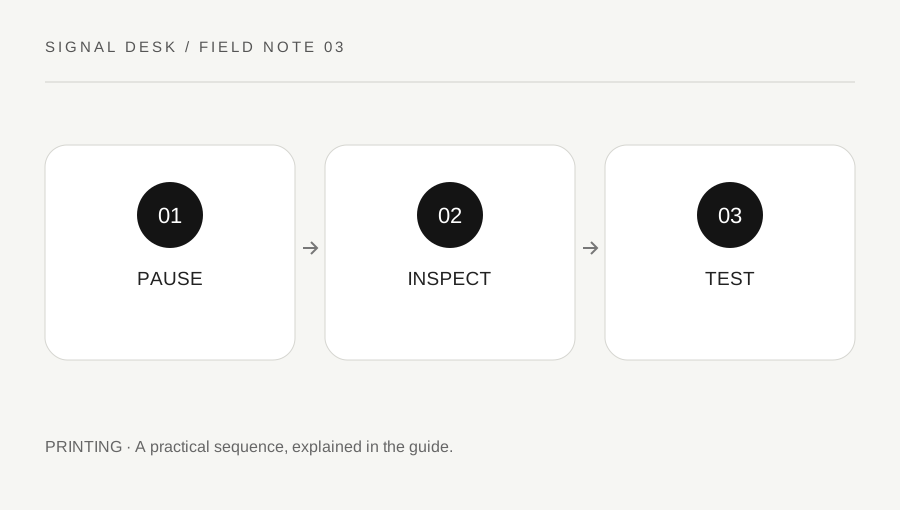
Original explanatory diagram. Numerical examples in this guide illustrate the reasoning; they are not a claim of hands-on testing.
Stop adding new jobs and inspect the queue
Open the queue for the exact printer you intended to use. Write down the job names, times, status messages and approximate page counts. A queue attached to an old printer entry may be unrelated to the device on your desk. If other people share the printer, ask before cancelling jobs that are not yours. A quiet printer does not establish that nothing is being processed.
Check whether the queue or printer is paused or marked offline in the operating system, then compare that with the physical device. Avoid changing several controls at once. A paused queue, an empty paper tray and a document waiting for manual feed can produce similar frustration but need different actions. Clear observation comes before deleting the entire queue or reinstalling the printer.
Look for the condition blocking progress
Read the printer's screen for paper size, tray, toner or ink, cover and jam messages. Follow the exact model's safe instructions for paper removal. Do not reach into hot areas, force moving parts, or dismantle the device. If it requests a paper type or size, compare that request with the document settings and what is actually loaded.
Return to the computer and check the first stalled job. A large image-heavy document may take longer to prepare than a one-page text file, but indefinite waiting with an error deserves investigation. Save the source document before changing its settings. If the queue belongs to a workplace server or a managed multifunction printer, involve its administrator instead of restarting shared services or removing other users' jobs.
Cancel carefully and test a small document
If you decide to cancel your own stalled job, use the operating system's normal queue control and allow the status to update. Be aware that cancellation may not stop pages already buffered inside the printer. Stay nearby if the document is private. Do not assume that closing the application removes a job that has already been handed to the print system.
Once the queue and printer are ready, send a single non-sensitive page. Use an operating-system test page where appropriate, followed by a short document in the original application. This order separates a general print-path problem from a document-specific one. If cancellation itself remains stuck, consult the current official troubleshooting instructions for that system before taking service-level steps that affect other jobs.
Use the result to choose the next branch
Imagine that a twenty-page presentation stalls but a one-page test prints successfully after the job is cancelled. Reopen a saved copy of the presentation, confirm the intended printer and page size, and try a small page range. Check whether one unusually complex page triggers the failure. Keep the original file unchanged while testing alternatives.
Now imagine that the operating-system test also fails and the printer displays a mismatched paper request. Correct the mismatch according to the manual, then retest once. These two examples lead to different investigations even though both started with a stuck queue. Record each test and result so you can stop repeating an action that has already answered its question.
Check for delayed output and close the loop
After recovery, inspect the queue again and remove any duplicate jobs you no longer need, subject to the rules for shared equipment. Confirm that the printed pages are complete and in the expected order. If you pressed Print several times earlier, keep an eye on the device long enough to catch delayed copies, particularly where documents contain personal or confidential information.
Keep a short note of the cause you actually observed and the action that restored printing. If the same document repeatedly blocks an otherwise working setup, report its application, format, page range and error without sharing private contents unnecessarily. If every job stalls, give support the printer model, connection method and test-page result. A repeatable description is more valuable than a list of unrecorded resets.
A practical checklist
Tick items for your own use. This checklist is saved only in this browser.
Questions that come up
Does closing the document cancel printing?
Not reliably. Once submitted, a job can remain in the print queue or in the printer buffer. Inspect the queue and the physical device.
Should I restart the print service immediately?
Start with the queue, printer status and ordinary cancellation. Service changes may affect every user of a shared setup and should follow official guidance.
Why test only one page?
It gives a clear, low-waste check of the connection before you submit a large or complex document again.
References & scope
Background references checked on 18 October 2026. The examples and practice exercises are original editorial explanations, not copied procedures or professional advice.