Printer Produces Blank Pages: Separate the Document from the Device
A blank sheet can result from a document choice, a print setting or a printer condition. Use a small source-independent test before running repeated cleaning cycles or replacing supplies.
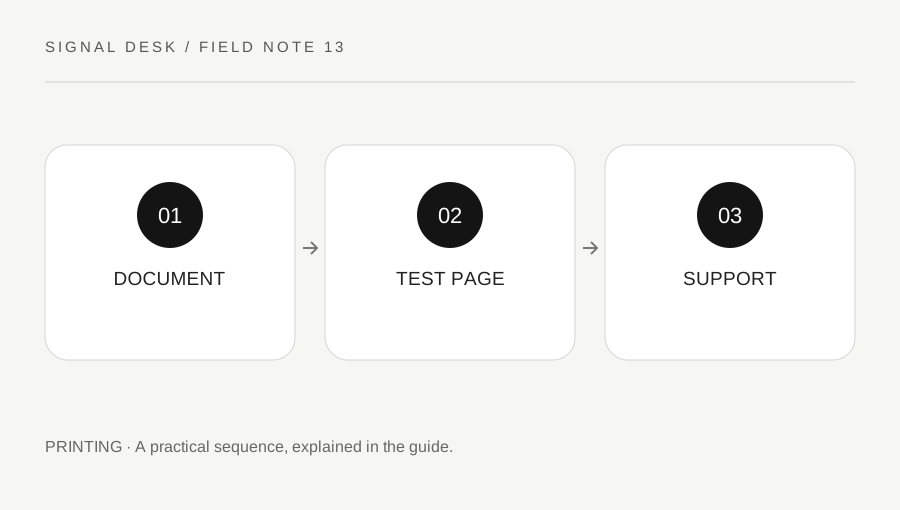
Original explanatory diagram. Numerical examples in this guide illustrate the reasoning; they are not a claim of hands-on testing.
Check the file and selected pages first
Open the document and inspect the actual pages selected in the print dialog. A blank page at the end of a file, an empty worksheet range or content outside the intended page can create an apparently mysterious output. Use print preview and a short known document to compare. Make sure the intended printer, page range and output settings are selected.
Distinguish completely blank sheets from faint printing, missing colors and extra blank sheets between otherwise correct pages. Those are different patterns. Record whether the problem affects every document or one particular file. Avoid repeatedly submitting the same large job, because that wastes paper and can leave duplicates waiting in the queue after the original issue is resolved.
Use a built-in test and model guidance
If the model offers a built-in test or quality report, produce it using the official instructions. This separates some computer-side questions from the printer’s own output path. Read the result according to that model’s documentation rather than expecting every printer to produce the same pattern. Keep the sample if support may need a description of missing marks.
Check supply status and recent changes through the printer’s normal controls. If a cartridge or other replaceable supply was just installed, follow its official installation checks. Do not touch delicate surfaces, force components or open areas not intended for user access. Inkjet and laser mechanisms differ; a maintenance procedure appropriate to one is not a general instruction for the other.
Work through two distinct outcomes
Imagine that a built-in test prints correctly but one spreadsheet produces a blank sheet. That comparison supports inspecting the spreadsheet’s print area, selected sheet and page settings. A printer cleaning cycle is not the most direct answer to a source-specific blank output. Test a small known document and return to the source application with the successful comparison recorded.
Now imagine that the printer’s own test is also blank immediately after a supply change. Follow that model’s installation and maintenance guidance, including any warnings about user-serviceable parts. If a supported cleaning procedure is advised, use it within the manufacturer’s limits rather than running it indefinitely. The two outcomes began with the same blank sheet but lead to different questions and different stopping points.
Avoid waste and escalate a repeatable pattern
Keep maintenance attempts proportional to the official instructions. Repeated cleaning can consume supplies without resolving the cause, and physical inspection can be unsafe in hot or powered areas. Stop for an error you cannot interpret, visible damage or a procedure requiring service access. Contact the manufacturer or an authorized service route with the model and observed test results.
After a change, print one non-sensitive page and inspect it fully before resuming the larger job. Check for missing colors or very faint content rather than accepting any mark as a complete repair. Record the document-specific versus built-in-test comparison and any recent supply replacement. This gives support a clear starting point and prevents a frustrating series of unrecorded reinstalls, cleanings and replacement parts.
Keep extra blank pages separate from missing content
If correct pages print with an additional blank sheet at the end, inspect the source’s final page and print range before treating the printer as unable to mark paper. A document can contain an unnoticed trailing page or an application-specific layout break. Compare a one-page known file and count the sheets that emerge. Record whether the extra sheet belongs to every job or one document. This small distinction prevents unnecessary supply maintenance for a layout issue and gives application support a precise example to reproduce.
A practical checklist
Tick items for your own use. This checklist is saved only in this browser.
Questions that come up
Should I run cleaning until something prints?
No. Use the model-specific maintenance procedure and limits. Repeated cleaning can waste supplies and may not address a document or installation problem.
What if only one spreadsheet prints blank?
Compare its print area, sheet selection and preview with a small known document. A successful built-in test is useful evidence for this branch.
Are inkjet and laser maintenance steps interchangeable?
No. Use the instructions for the exact model and do not open components or hot areas not intended for user service.
References & scope
Background references checked on 18 October 2026. The examples and practice exercises are original editorial explanations, not copied procedures or professional advice.