Wi-Fi Stops Working After Sleep: Record the Wake-Up Pattern
A problem that appears after sleep needs a before-and-after comparison. Preserve the working state, note the wake conditions and test a small recovery before changing system power settings.
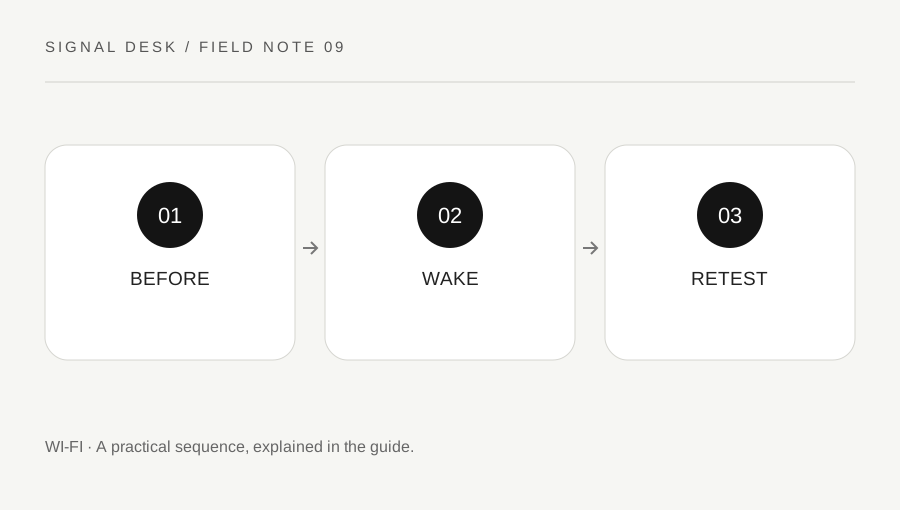
Original explanatory diagram. Numerical examples in this guide illustrate the reasoning; they are not a claim of hands-on testing.
Establish a clean before-sleep baseline
While the connection works, record the network name and open two familiar websites. Note whether the laptop is on battery, connected to power, docked or using a USB network adapter. Save work before starting a planned sleep test. Do not reproduce a failure during an important call or while an unsaved transfer is running merely to gather evidence.
Use the normal sleep and wake controls and write down the approximate interval. After waking, distinguish missing Wi-Fi controls, a disconnected state and a connected state without internet. Note how long you waited before judging the connection. A slow application reopening after sleep can look like a network fault, so check ordinary browsing separately from the application that first showed the issue.
Compare one condition at a time
Repeat the observation only when it is practical and change one condition, such as testing with and without a dock. Keep the location and task similar. If an adapter or dock is involved, use its supported connection and power arrangement. Do not disconnect a device that is actively transferring data or force a connector that does not fit.
Check whether another device on the same network works during the failure. If the shared connection remains available, focus the next investigation on the wake-up path of the affected device. If every device has lost access, a simultaneous network event may be involved. Neither comparison establishes a final cause, but both help avoid unnecessary router changes for a problem that follows one computer’s sleep state.
Work through a docking example
Imagine that a laptop browses normally, sleeps while docked and wakes showing connected without internet. A phone on the same Wi-Fi works. The laptop recovers after a normal reconnect. Record those facts and the temporary recovery instead of declaring the router defective. On a later controlled test, note whether the same pattern occurs while undocked.
If the issue follows the docked condition, consult the computer and dock manufacturers' current support information with the exact models and versions. If it follows every wake event regardless of the dock, the system or wireless adapter route may be more relevant. Avoid changing multiple power-management controls based on a generic forum post. A setting that helps one hardware combination can be irrelevant or undesirable on another.
Choose updates and escalation deliberately
Use built-in diagnostics and official system, adapter and device updates when current support guidance calls for them. Save work and understand any restart requirement. On a managed computer, let the administrator assess driver or power-policy changes. Do not remove management profiles or weaken network controls to work around a wake-up symptom.
Verify a proposed repair with the original sleep-and-wake task, including the relevant power and docking conditions. Keep a note if it helps only once or only for a short interval. Send support the before-and-after states, recovery action, repeatable trigger and the working second-device comparison. When repeated tests add no new information, stop cycling through sleep and use a stable temporary connection or approved workaround while the underlying issue is investigated.
Keep timestamps that can match a support log
Record the local time of a controlled failure and its recovery, including the time zone if support is remote. A useful entry might say wake at 09:10, connected without internet at 09:11, ordinary reconnect at 09:13, browsing restored at 09:14. These are illustrative times, not expected recovery intervals. Such a sequence can help an authorized technician locate relevant system records without requiring you to run unfamiliar log-collection commands. Do not post full diagnostic logs publicly because they may contain identifying details beyond the connection symptom.
A practical checklist
Tick items for your own use. This checklist is saved only in this browser.
Questions that come up
Should I disable sleep permanently?
That can conceal the trigger without explaining it and may conflict with power or management needs. Record the pattern and use official device guidance.
Does reconnecting prove the problem is fixed?
It shows a recovery action. Reproduce the relevant wake conditions to check whether the underlying problem returns.
Should every power option be changed at once?
No. Record original settings and follow the relevant manufacturer or administrator guidance so each change can be assessed.
References & scope
Background references checked on 18 October 2026. The examples and practice exercises are original editorial explanations, not copied procedures or professional advice.