Printer Paper-Size Mismatch: Align the Document, Tray and Job
A paper mismatch message is a request to compare settings, not simply to add more paper. Read the document, print dialog and printer tray information together before retrying.
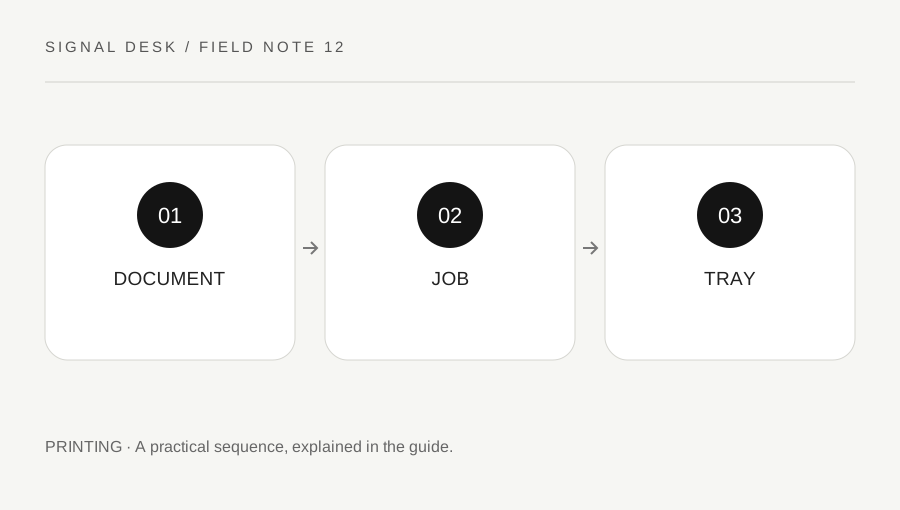
Original explanatory diagram. Numerical examples in this guide illustrate the reasoning; they are not a claim of hands-on testing.
Read what the printer is requesting
Record the exact message and which tray or paper size it mentions. Check what is actually loaded without forcing the tray or moving its guides against the paper. Use the model instructions for supported sizes and loading direction. A printer requesting a different stock can remain paused even though the tray looks full.
Inspect the source document’s page size as well as its visible layout. A file created for one standard paper size may be printed in a household using another. Similar-looking rectangles are not interchangeable measurements. Do not change the document merely to dismiss the message if its exact size is required for a form, label, template or official submission.
Compare application and printer settings
Open the print dialog for the intended printer and inspect the selected size, paper source and output options. Applications and printer drivers can expose these controls under different names, so use current model and application help where needed. Record what you changed. A saved print preset may carry a setting from an earlier job even when the new document is different.
Choose a supported paper and output combination that matches the actual purpose. Scaling to fit may be acceptable for an ordinary reading copy, while a measured template may require exact scale. Do not assume that selecting a nearby size is suitable for every document. Check the recipient’s instructions and inspect print preview before sending the job, especially where margins or physical measurements matter.
Work through a mixed-size example
Imagine a letter-size document sent to a printer loaded with A4 paper. The printer requests the document’s original stock and waits. For a casual reading copy, the user may choose a supported fit option and the actual loaded size, then inspect one page. For a template that must preserve measurements, obtaining the required stock or following the author’s exact-size instructions is a different decision.
After choosing the appropriate route, cancel unwanted duplicate attempts and send one page. Check that all intended content is present and that the output serves its purpose. If the message persists, compare the tray’s own registered size with the job settings using the printer manual. Reinstalling the driver before checking these visible mismatches would add disruption without answering the immediate question.
Verify the next job does not inherit the mistake
Once the test succeeds, review whether the changed setting applies only to this job or to a saved default. A workaround for one document may be wrong for the next. Note any preset you changed and restore a sensible supported default when appropriate. On shared equipment, avoid altering tray or default settings without considering other users.
If the device reports a mismatch despite a verified supported combination, collect the model, message, loaded size and application settings for official support. Do not dismantle paper sensors or force a tray to persuade the printer that another size is present. Keep the record focused on what was requested and what was loaded. A readable one-page output and a clear saved setting are better evidence of success than the temporary disappearance of a warning.
Check a multi-page document for mixed sizes
A packet can contain more than one page size even when its first page looks ordinary. Inspect the page that triggered the pause and the pages immediately around it. A cover, inserted diagram or exported worksheet may differ from the rest. If the application offers per-page paper handling, use its documented behavior and review a small selection first. Record the exception in your print note so the next user does not assume every page shares one setting. Do not alter a required original merely to make all pages look alike.
A practical checklist
Tick items for your own use. This checklist is saved only in this browser.
Questions that come up
Can I always use Fit to Page?
No. It may be fine for reading copies but unsuitable for templates, labels or documents requiring exact dimensions. Follow the document requirements.
Why does a full tray still produce a warning?
The printer may be waiting for a different registered size, type or source. Compare the exact request with the loaded and configured paper.
Should I reinstall before checking the size?
Inspect document, job and tray settings first. A visible mismatch does not itself establish that installation is the problem.
References & scope
Background references checked on 18 October 2026. The examples and practice exercises are original editorial explanations, not copied procedures or professional advice.