Printer Goes Offline After Sleep: Compare Wake-Up and Discovery
A printer that works after a restart but disappears later needs a repeatable timeline. Distinguish waking the physical device from restoring the computer’s selected connection.
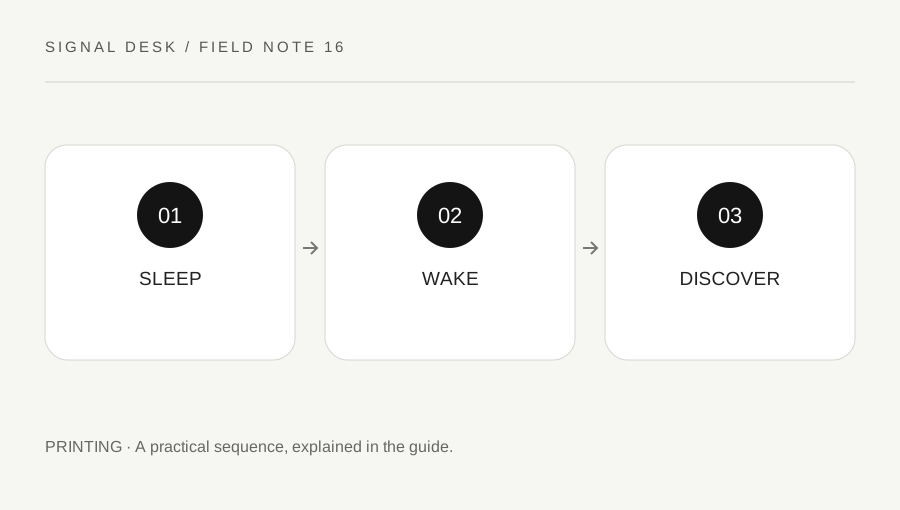
Original explanatory diagram. Numerical examples in this guide illustrate the reasoning; they are not a claim of hands-on testing.
Describe which device went to sleep
Record whether the printer slept, the computer slept or both were left idle. Note the approximate interval and whether the problem follows a particular event such as closing a laptop lid or changing rooms. Look at the physical printer before changing the computer’s settings. A sleeping display and a genuine error state are not the same thing.
Use the model’s normal wake action and allow it to become ready. Read any message that remains. Do not disable all energy-saving settings at the outset, because that can conceal a trigger without explaining it and may conflict with the equipment’s intended use. Keep the working state and its selected printer entry documented so the next comparison has a baseline.
Separate readiness from the saved destination
After the printer wakes, inspect its connection status using the official controls. On the computer, open the intended printer entry and queue. Confirm that a duplicate entry or an earlier USB setup has not become the application’s selected destination. Record the exact offline message and whether the device is found through another authorized computer or phone.
If another device prints while the first reports offline, the printer is not universally unavailable. That comparison supports investigating the first computer’s saved route or discovery behavior. If no device can print and the printer reports a network problem, investigate that shared condition. Avoid assigning a new address or removing every printer entry based on generic advice; address management and discovery settings depend on the actual network.
Work through a timed example
Imagine a printer that prints immediately after setup but appears offline on one laptop the next morning. Waking the printer does not help that laptop, while a phone prints a small page. Record those facts, including the name of the laptop’s selected printer entry. A normal reconnect or official diagnostic is a narrower next step than resetting the entire printer network.
In a second pattern, both laptop and phone fail until the printer is awakened through its supported control. That points toward a wake or availability question for the model’s support documentation. Repeat only when practical and note whether the improvement lasts. Do not treat a single restart followed by one successful page as proof that the overnight pattern has been resolved.
Use model-specific guidance and retest the interval
Check current manufacturer guidance for the exact model and operating system if the pattern continues. Supported firmware or software updates may be relevant, but install through official routes and follow power and restart requirements. On shared or managed networks, ask the administrator to assess configuration changes. Keep original settings before any authorized adjustment.
Verify with a small page immediately after the change and again after the idle or sleep interval that originally triggered the issue. Keep private material out of these tests. If the printer is still intermittently unavailable, send support the timeline, wake behavior, network status and second-device result. This record gives a more precise question than simply saying the printer is offline and prevents a cycle of temporary resets from being mistaken for a lasting repair.
Distinguish discovery delay from a permanent loss
Allow the printer and computer to complete their normal wake sequence before sending several jobs. Note whether the printer becomes available without intervention after a consistent short delay, or remains absent until an action is taken. Record the observed duration without turning it into a universal waiting rule. If a delayed job later prints, inspect and cancel duplicates you no longer need. This timing detail can help support separate an expected initialization period from an actual fault and protects private documents from emerging unexpectedly after you have left the room.
A practical checklist
Tick items for your own use. This checklist is saved only in this browser.
Questions that come up
Should I disable printer sleep immediately?
First establish the pattern and consult the exact model guidance. Removing sleep can hide the symptom without identifying the underlying condition.
Does offline always mean the printer lost power?
No. It can describe the computer’s view of a saved connection even while the physical printer is ready.
What proves a repair lasts?
Retest after the same idle or wake conditions that previously caused the failure and record any recurrence.
References & scope
Background references checked on 18 October 2026. The examples and practice exercises are original editorial explanations, not copied procedures or professional advice.