Print from an iPhone or iPad: Check Support, Network and App
Mobile printing depends on the printer, its network route and the application. Confirm those pieces before installing unfamiliar software or changing the home router.
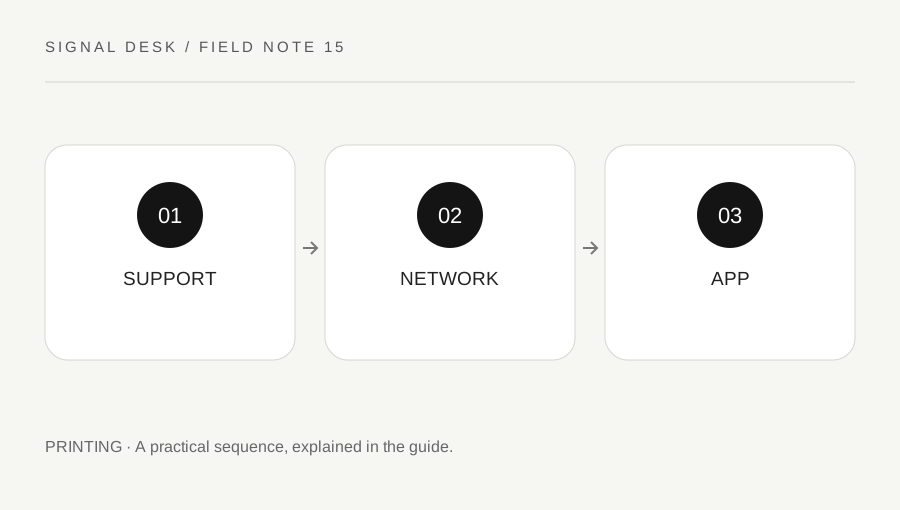
Original explanatory diagram. Numerical examples in this guide illustrate the reasoning; they are not a claim of hands-on testing.
Verify the supported printing method
Look up the exact printer model in its official documentation and confirm whether it supports the printing method you intend to use. Apple’s AirPrint route requires a compatible printer and an appropriate network connection. A printer connected to a computer by an unrelated cable or Bluetooth arrangement is not automatically an available AirPrint destination.
Do not infer compatibility from the presence of Wi-Fi alone. Some manufacturers offer their own supported applications for certain tasks, and the appropriate route depends on the model. If you need an application, reach its listing through the manufacturer’s official instructions or a verified app-store publisher. Avoid granting broad access or installing a configuration profile from an unsolicited page merely to make a print button appear.
Compare the actual network connection
Check the network name used by the phone or tablet and the printer’s own connection status. A phone can browse through mobile data even when its Wi-Fi is not working, so internet access alone does not establish the intended local connection. A guest network may deliberately prevent device discovery. Ask the owner or administrator about supported printing on shared networks rather than changing isolation controls.
Wake the printer if appropriate and read its display for ordinary readiness or error messages. If another authorized device can print through the intended network route, preserve that comparison. If no device can print, investigate the printer or shared setup before concentrating only on the phone. Keep network reports private; a support question rarely requires posting all addresses and identifiers publicly.
Test the app with a small non-sensitive item
Use an application that supports printing and follow its current help to locate the print action. In an AirPrint workflow, select the intended printer and inspect the page range, copy count and available options. Not every application exposes the same controls or supports printing. A missing print action in one app is different from a printer that cannot be discovered anywhere.
Imagine a one-page document prints from one app but a saved item in another has no print option. That comparison suggests consulting the second application’s supported sharing or export workflow. Do not assume the network is faulty. If you export a copy for printing, verify that it contains the intended material and does not expose additional personal content. Keep the source intact and review the print preview before submitting.
Inspect output and manage queued jobs
Print one page first and remain near the expected device, particularly for private material. Confirm that it emerges from the correct printer and that the size and content are readable. If the job seems delayed, inspect the supported print-status controls rather than repeatedly tapping Print. Mobile jobs can remain pending, producing unexpected copies after the printer becomes available.
After a successful test, send the remaining pages with the correct count and range. If discovery still fails, record the phone or tablet system version, printer model, supported method and network comparison for official support. Do not factory-reset the router or printer without a justified model-specific plan. The goal is a verified mobile route with a known output, not simply a device name appearing in a menu.
Check output options in the mobile preview
Before submitting the full job, inspect any available preview for clipped edges, unexpected orientation or the wrong page range. A document designed for a large page may be difficult to read when reduced to another size. The options available depend on the printer and application, so do not assume a desktop setting has a mobile equivalent. If exact scaling or special finishing is required, use a supported workflow that exposes and verifies those controls. A convenient mobile route should still produce the document the recipient actually needs.
A practical checklist
Tick items for your own use. This checklist is saved only in this browser.
Questions that come up
Does a Wi-Fi printer automatically support AirPrint?
No. Verify the exact model and supported connection method through the manufacturer or Apple guidance.
Why can I browse but not find the printer?
Browsing may use mobile data or a different network path. Printer discovery also depends on the local network and supported method.
Should I install every printing app suggested by a pop-up?
No. Follow the printer manufacturer’s official route and verify the publisher and permissions.
References & scope
Background references checked on 18 October 2026. The examples and practice exercises are original editorial explanations, not copied procedures or professional advice.