Wi-Fi Connected but No Internet: Separate the Network from the Device
The Wi-Fi symbol confirms a wireless connection, not a working route to every website. A few comparisons can narrow the fault before you change settings or restart the whole household.
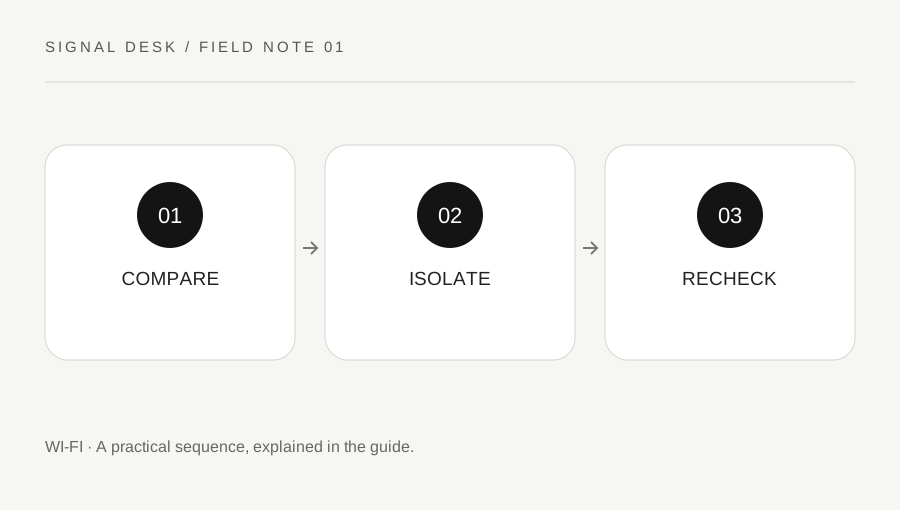
Original explanatory diagram. Numerical examples in this guide illustrate the reasoning; they are not a claim of hands-on testing.
Write down exactly what still works
Start with a small description: the device, the network name, the time, and what fails. Does the browser display a timeout, a name-resolution error, or a sign-in page? Can an already-open messaging app receive a new message? Test two unrelated familiar websites rather than refreshing the same page repeatedly. Do not enter passwords into an unexpected page that appeared after the connection failed.
Check that you joined the intended network. Similar names, an old extender name, and a guest network can be easy to confuse. On a phone, temporarily turning mobile data off can make a comparison clearer, provided you do not need it for an active call or other essential task. Restore it afterwards. A phone that silently falls back to cellular data is not evidence that the home Wi-Fi has internet access.
Use two devices and two networks
If another device fails on the same Wi-Fi, the shared network or service becomes a more plausible place to investigate. If that second device works, concentrate on the original device without assuming the router is perfect. Devices can use different bands, saved settings, or access rules. The comparison narrows the question; it does not prove a single diagnosis.
If available, test the affected device on another trusted connection, such as your own hotspot, while considering data charges. Avoid joining an unknown public network just to complete a test. Write a compact grid: laptop/home fails, phone/home works, laptop/own hotspot works. That pattern gives support staff something useful to examine and is much more informative than saying that the internet is broken.
Make the least disruptive next change
Check Wi-Fi and airplane-mode controls, then disconnect and reconnect normally. Save work before restarting the affected computer. On a managed device, use the approved support route if VPN, filtering, proxy, or security software is involved. Do not disable protective software or remove an employer configuration because an online checklist mentions it.
When several home devices are affected, look at the router or modem indicators and the provider's outage information using a separate connection if necessary. A normal restart and a factory reset are different actions. A factory reset can erase connection settings and is not an initial diagnostic step. If restarting shared equipment is appropriate, tell other users, use the manufacturer's instructions, and allow the device to finish starting before judging the result.
Work through an illustrative comparison
Imagine a laptop that shows connected after waking, but two websites fail. A tablet on the same named home network opens both sites with its cellular connection disabled. The laptop opens them through the owner's hotspot. Record those observations before changing anything. Reconnecting the laptop to the home network is a reasonable small test; replacing the router is not supported by this evidence.
Suppose reconnecting restores access for twenty minutes and then the problem returns. Keep that duration in the record rather than declaring the fault fixed. Note whether it happened after sleep, movement to another room, or starting a VPN. Repeated conditions can guide the next official troubleshooting branch. Do not immediately copy commands that alter routes, erase network profiles, or assign addresses from another computer.
Know what to send to support
Stop repeating restarts when they do not produce new information. Collect the exact error wording, operating-system version, router model, and the two-device comparison. Share relevant screenshots with a trusted provider or administrator, hiding account numbers, passwords, public addresses where unnecessary, and other personal information. Keep a private full record if support needs a detail later.
If no home devices can connect and the service indicator remains abnormal, contact the provider with the timeline. If one device fails on multiple trusted networks, use its manufacturer's support path. Seek prompt help for unexpected certificate warnings or a suspicious sign-in request instead of bypassing them. A useful outcome can be a well-isolated fault and an accurate support request, even when the final repair requires someone else's access.
A practical checklist
Tick items for your own use. This checklist is saved only in this browser.
Questions that come up
Should I change DNS immediately?
First establish whether the issue affects one device, one application or the shared connection. Changing several settings at once can conceal the evidence and create an additional problem.
Does a full Wi-Fi icon prove a good connection?
It describes the wireless link. It does not establish that the provider, the website or every part of the internet path is working.
When can I call it fixed?
Retest the original failure under the same conditions, including any relevant sleep or room change. Record if the improvement is temporary.
References & scope
Background references checked on 18 October 2026. The examples and practice exercises are original editorial explanations, not copied procedures or professional advice.