One Website Will Not Load While Others Work: Narrow the Failure
When most browsing works, a single failing website needs its own comparison. Check the address, message and application before resetting a connection that may be functioning normally.
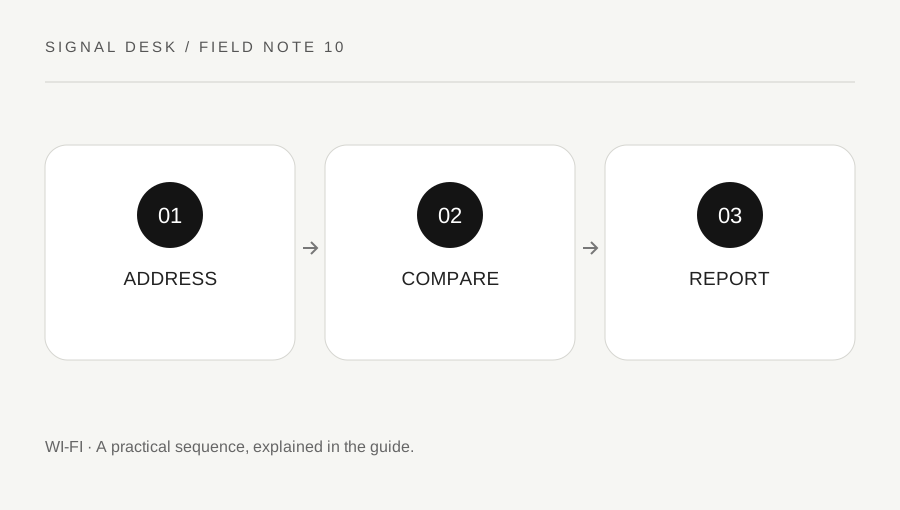
Original explanatory diagram. Numerical examples in this guide illustrate the reasoning; they are not a claim of hands-on testing.
Check the destination and exact message
Read the address carefully, especially if you reached it through an email or advertisement. Use a known bookmark or type the familiar official address when appropriate. A mistyped domain, an expired saved link and a service outage can all look like a connection problem. Record the exact wording of the browser message without exposing private tokens in the address.
Do not bypass a certificate warning or enter account credentials into an unexpected page to complete the test. A security warning is information to investigate, not a nuisance to dismiss. If the destination contains private account details or a one-time link, avoid pasting it into public forums or third-party status checkers. Describe the public service name and the message instead.
Compare browsers, devices and service information
Test two unrelated familiar websites to confirm the wider browsing pattern. If only one service fails, check its official status or support information through a trusted route. Try the same public page on another device connected to the same network if available. A comparison should not require sharing your login or asking someone else to open a private document.
If another browser is already available on your device, testing the same public page can help identify an application-specific pattern. Keep security protections enabled. Do not clear every saved password, uninstall extensions indiscriminately or reset the network merely to make the comparison. If a later official support step involves clearing site data, understand that it may sign you out and remove local settings for that site.
Use a login-versus-loading example
Suppose a shopping site’s public home page opens, but signing in returns an account error. Other websites work and the same account error appears on another trusted device. That is different from a browser reporting that it cannot reach the server at all. Record the account-error wording and use the site’s official account support route rather than changing router settings.
In another example, a public page fails in one browser but opens in another on the same computer. That suggests an application-specific question worth investigating with browser support. It does not prove which extension, cache entry or setting is responsible. Keep a small record of the successful and failed tests so each later action answers a defined question rather than becoming another broad reset.
Stop when the next step requires the service owner
A service can be unavailable, restricted by an organization or affected by an account condition you cannot repair locally. On a managed network, ask the administrator about intended access rules. Do not seek a bypass simply because a page is blocked. If the service reports an outage, preserve your work and wait for its official recovery information instead of repeatedly resubmitting forms or payments.
Send support the public destination, time, browser version and precise comparison. Redact private identifiers from screenshots and avoid sharing authentication tokens embedded in URLs. After a proposed fix, test the original task carefully, particularly if it involved a purchase or submission that could be duplicated. Confirm the result through the service’s normal records rather than assuming that a refreshed screen means the earlier action never happened.
Separate an embedded feature from the whole site
A page may open while an embedded video, sign-in widget or file download fails. Record which visible element is affected and whether the rest of the public page loads. Avoid describing the entire service as unreachable when only one component is missing. If the site’s official support asks for browser details, provide the version and a redacted screenshot rather than private session data. Do not disable all privacy or security controls as a blanket experiment; use a narrowly explained official troubleshooting step and understand its effect before proceeding.
A practical checklist
Tick items for your own use. This checklist is saved only in this browser.
Questions that come up
Should I reset Wi-Fi when one website fails?
First verify that other destinations work and compare the failing service. A single-site or account issue may not involve the wireless connection.
Can I ignore a certificate warning for a quick test?
Do not bypass it. Check the address and trusted service information, then seek support if the warning persists.
Should I post the full failing URL?
Not if it contains account information, document links or tokens. Share only the public destination and relevant redacted error details.
References & scope
Background references checked on 18 October 2026. The examples and practice exercises are original editorial explanations, not copied procedures or professional advice.