Home Wi-Fi Network Not Listed: Compare What Each Device Can See
When a network name disappears, first find out whether the device sees any networks and whether another device sees yours. Those two observations point to different next checks.
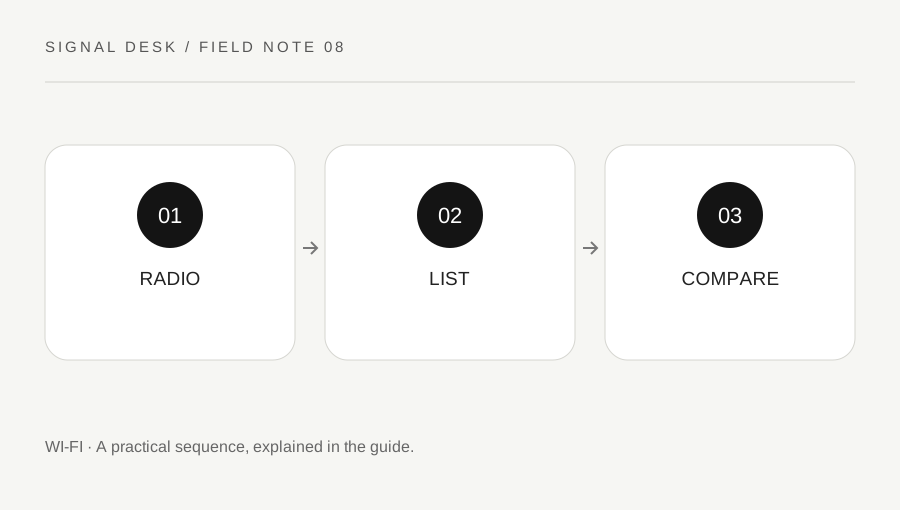
Original explanatory diagram. Numerical examples in this guide illustrate the reasoning; they are not a claim of hands-on testing.
Read the missing-network symptom precisely
Open the normal Wi-Fi controls and check whether wireless networking is enabled. Notice whether airplane mode or a hardware wireless control is involved. Record whether the list is empty, shows neighboring networks but not yours, or shows your network intermittently. Do not assume the same diagnosis applies to all three situations.
Use a practical position near your own access point for the first observation. Avoid leaning over equipment or relocating devices in unsafe ways simply to improve reception. Wait for the available-network list to refresh according to the system’s normal behavior. If the device is managed, a restricted control or missing option may be intentional; ask its administrator rather than attempting to remove policy or install an unknown wireless utility.
Compare a second device and the access point
Check whether another authorized device can see and use the intended network at the same location. A phone may already be connected without showing you the available-network list, so inspect its actual network name. Keep cellular fallback out of any internet comparison. If neither device sees the network, inspect the access point’s ordinary power and wireless indicators using its model guidance.
If the first device sees other networks, the wireless radio is doing something, but that alone does not prove full compatibility with your network. Supported bands, configuration and device capabilities can differ. Look up the exact router and adapter guidance before changing settings. Do not disable security or broadcast an open network just to make a name appear in the list.
Work through a new-router example
Suppose a new router is installed and two newer phones connect, but an older laptop shows neighboring networks without listing the new one. Record the laptop model, adapter details available through official system controls and the router’s supported configuration. This comparison suggests checking compatibility and setup rather than assuming the internet provider is offline.
Use the manufacturer’s current instructions to choose a supported arrangement if you own and administer the network. Record the original settings before a change, then test the laptop and the previously working phones. Do not copy a configuration intended for an unrelated router. If the laptop instead shows no networks anywhere, use its official wireless diagnostics and manufacturer support route, because that is a different pattern from one missing network.
Verify visibility and then actual use
When the network appears, join through the authorized normal procedure and test a familiar website. Visibility, successful authentication and internet access are separate checkpoints. Record which one was restored. If the name appears only near the access point, repeat a safe room comparison before treating the problem as fully solved.
Stop and seek help if the wireless control is absent, the adapter is not recognized, or equipment indicators remain abnormal. Use operating-system and manufacturer updates from official sources rather than driver-download advertising pages. Share the device models, system version, which networks are visible and the second-device result. Avoid posting a full neighborhood network scan publicly; the support question usually needs only the relevant comparison, not other people’s network identifiers.
Avoid confusing a saved profile with a live network
A remembered network in settings is not necessarily being broadcast nearby at that moment. Compare the live available-network list with the saved-profile list and label them correctly in your note. If the network owner intentionally uses a non-broadcast name, follow their authorized setup instructions rather than inventing an address or copying an unrelated profile. Record whether the name becomes visible after a normal equipment restart, and check previously working devices afterward. The question is whether the intended connection is available, not merely whether an old name remains stored.
A practical checklist
Tick items for your own use. This checklist is saved only in this browser.
Questions that come up
Does seeing neighboring networks prove my home setup is faulty?
It is a useful clue, but compatibility, settings and coverage still need comparison. It does not identify one definite cause by itself.
Should I make the network open for testing?
No. Use the manufacturer’s supported secure configuration and authorized support instead of removing access protection.
What information helps support most?
The models, system version, whether any networks appear, and whether another device sees the intended network in the same location.
References & scope
Background references checked on 18 October 2026. The examples and practice exercises are original editorial explanations, not copied procedures or professional advice.