Wireless Printer Not Found: Check the Connection Before Reinstalling
A printer can be powered on and still be absent from a computer. Check its own status, the shared network and the selected connection method before rebuilding its setup.
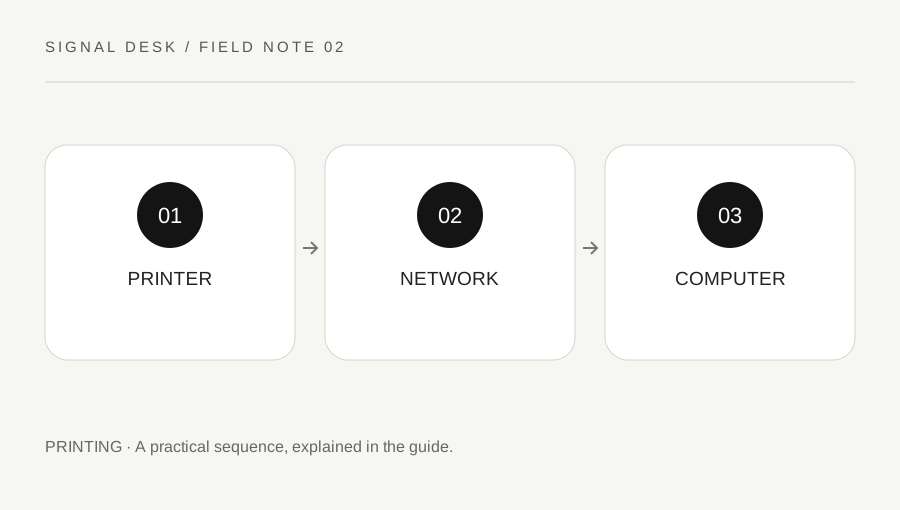
Original explanatory diagram. Numerical examples in this guide illustrate the reasoning; they are not a claim of hands-on testing.
Let the printer describe its own condition
Look at the printer's display and physical controls before concentrating on the computer. Record any error code, paper warning, open cover message, or wireless indicator. A sleeping printer may need to wake, while an error condition may prevent it from becoming ready. Use the exact model's documentation to interpret lights; blinking patterns are not consistent across manufacturers.
If the model supports a built-in network report or status page, follow its official instructions and keep the result private. It can help establish whether the printer is connected to the network you intended. Do not post the entire report publicly because it may include network names, addresses, or other identifiers. Check that a recent router replacement or password change has not left the printer using an old connection.
Compare the actual network paths
Confirm that the computer and printer are meant to communicate through the same home network. A guest connection may deliberately keep devices apart. An extender, mesh access point or second router can introduce names that appear similar while belonging to different arrangements. Do not turn off isolation or weaken security on shared accommodation or workplace networks; ask the person who manages them.
Check whether the printer is using ordinary network printing, a USB cable, or a manufacturer-specific direct wireless connection. These are different routes. Connecting to a printer's direct network may temporarily change the computer's internet access. Use the manual to choose a supported method and avoid hopping between connection modes while testing, because the selected print destination can remain tied to the earlier setup.
Check the computer without replacing everything
Open the operating system's printer list and inspect the intended device. Similar duplicate entries may refer to an old setup or a different connection. Note the exact entry and its status before removing anything. If the printer exists but appears offline, first check its readiness and the network comparison; absence from one application does not necessarily mean the printer needs reinstalling.
Use built-in diagnostics and the current operating-system instructions. If a driver or installer is required, get it from the printer manufacturer or the operating system's official route, matching the model and computer architecture. Avoid third-party driver bundles and telephone numbers in unsolicited pop-ups. On a managed computer, installing software or adding a printer may require administrator help, and that is a useful stopping point.
Follow a router-change example
Consider a printer that worked before a router replacement. A laptop joins the new home network and browses normally, but the printer's status report still names the old network. That observation makes updating the printer's wireless connection a more relevant next step than deleting every printer entry on the laptop. Use the model-specific setup procedure and have the correct network information available.
After the printer reports a connection to the intended network, try one operating-system test page. If it prints, test a short document from the original application. If the test page fails, preserve the error wording and network observations. If the test page succeeds but a particular application fails, investigate that application's destination and document settings. Reinstalling repeatedly would blur this important distinction.
Verify the result and preserve a fallback
Use a one-page, non-sensitive document to verify the connection. Confirm that it reaches the expected physical printer rather than a different device with a similar name. Check output orientation, page size and completeness before sending a large job. A successful discovery notification is only one stage; a readable printed page is the practical outcome.
Record the final connection method, selected printer entry and any official software installed. Keep any still-needed USB connection or alternative printing arrangement until the new route is working. If discovery continues to fail despite a verified network connection, send the model, operating-system version and precise status to the manufacturer or administrator. Do not factory-reset shared network equipment solely to make a printer appear.
A practical checklist
Tick items for your own use. This checklist is saved only in this browser.
Questions that come up
Should I delete every duplicate printer?
First identify which entry belongs to the working connection. Removing entries without recording them can discard a useful setup and complicate the comparison.
Will a printer always work on guest Wi-Fi?
Guest networks may restrict communication between devices. Ask the network owner about supported printing rather than changing its security controls.
Can an old installer be the problem?
It can be incompatible with a newer system. Check the current model-specific instructions and use the official supported installation route.
References & scope
Background references checked on 18 October 2026. The examples and practice exercises are original editorial explanations, not copied procedures or professional advice.