Wi-Fi Password Rejected: Check the Network and Credentials Safely
A rejected password does not automatically mean the router needs resetting. Confirm the intended network, the credential source and the exact point of failure before changing a working setup.
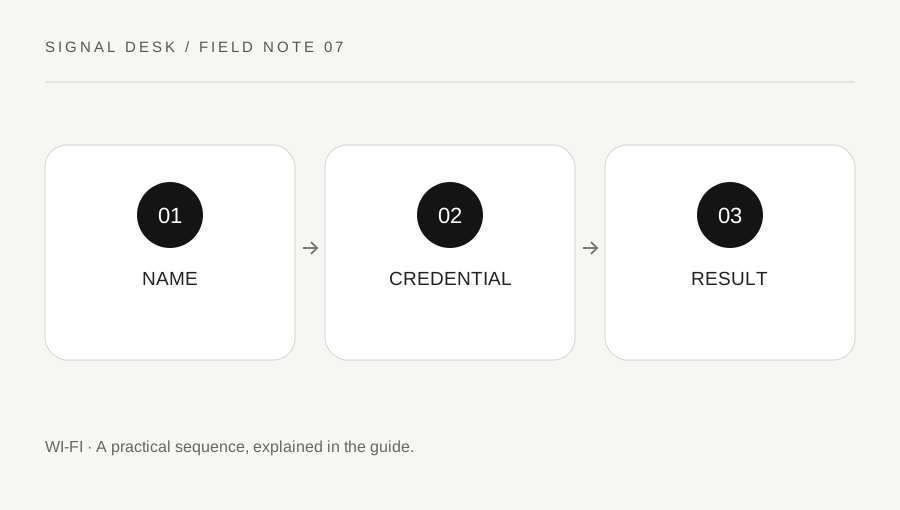
Original explanatory diagram. Numerical examples in this guide illustrate the reasoning; they are not a claim of hands-on testing.
Separate joining from internet access
Read the message carefully and record whether the device refuses to join, joins without internet, or opens a separate sign-in page. A wireless password, a router administration password and an account password serve different purposes. Entering one into the field for another will not resolve the connection, even when each is valid in its proper place.
Confirm the network name with the owner or your own records. Similar names can belong to a guest connection, an old extender or another household. Do not keep trying credentials on a network you cannot identify. On a managed network, follow the administrator’s enrollment or sign-in instructions instead of assuming a household-style password is the intended route. Note whether other authorized devices are already connected and working.
Check the credential without exposing it
Use the current password supplied by the owner or stored in your authorized records. A label on a router may show an original value that was later changed. Check capitalization, keyboard layout and easily confused characters privately. If a show-password control is available, use it only where other people cannot read the screen. Do not send the password in a screenshot or public support message.
If another authorized device can connect using the same current information, preserve that working comparison. The affected device may hold an old saved credential, but deleting a saved network has consequences: you will need the correct information to rejoin. Make sure you have it and are entitled to use the network before following the operating system’s official forget-and-rejoin procedure. Avoid clearing every saved network just to remove one entry.
Use a narrow worked comparison
Imagine a household changes its Wi-Fi password. A phone reconnects using the new value, while a laptop repeatedly rejects its automatic connection. The useful facts are the exact network name, the confirmed change and the successful phone comparison. Inspecting the laptop’s saved connection is a relevant next step; factory-resetting the router would disrupt the working phone and erase useful context.
After entering the correct current information through the normal connection controls, test a familiar website. If the laptop joins but cannot browse, the problem has changed category. Stop treating it as a password rejection and record the new message. If the same rejection continues, use current device support guidance and mention the successful comparison without sharing the credential itself. A clear transition between symptoms prevents repeated changes aimed at the wrong stage.
Escalate the right question
Ask the network owner or administrator when you cannot establish the correct credential, the network uses organizational sign-in, or a newly replaced router has unfamiliar setup requirements. Do not try to bypass access controls or copy another device’s address or identity. A connection you are not authorized to use is not made legitimate by a troubleshooting tutorial.
Keep a brief note of the operating system, network name in a suitably private form, exact error and whether manual entry or a saved connection was used. If support proposes changing router settings, record existing values and understand how to restore them. Retest ordinary internet use after a successful join, then remove password-bearing temporary notes from shared locations. The final outcome is a verified authorized connection, not merely the disappearance of the original error dialog.
When the keyboard is the variable
On a device with several keyboard layouts, test ordinary visible characters in a harmless local text field before entering the credential again. Do not type the actual password into a place that might synchronize or be shared. Check whether a physical keyboard has a stuck modifier or an unfamiliar layout selected. If another person supplied the credential verbally, ask them to confirm it through an appropriate private route rather than guessing similar characters repeatedly. Keep the distinction between checking entry and asking to change the network password.
A practical checklist
Tick items for your own use. This checklist is saved only in this browser.
Questions that come up
Should I reset the router if one laptop rejects the password?
First verify the current credential and compare an authorized working device. A factory reset is disruptive and is not supported merely by one rejected connection.
What if I can join but websites fail?
Treat that as a separate internet-access symptom. Record the change and compare other devices rather than continuing to change the password.
Can the router label be outdated?
Yes, the owner may have changed the original credential. Obtain the current value through an authorized source.
References & scope
Background references checked on 18 October 2026. The examples and practice exercises are original editorial explanations, not copied procedures or professional advice.